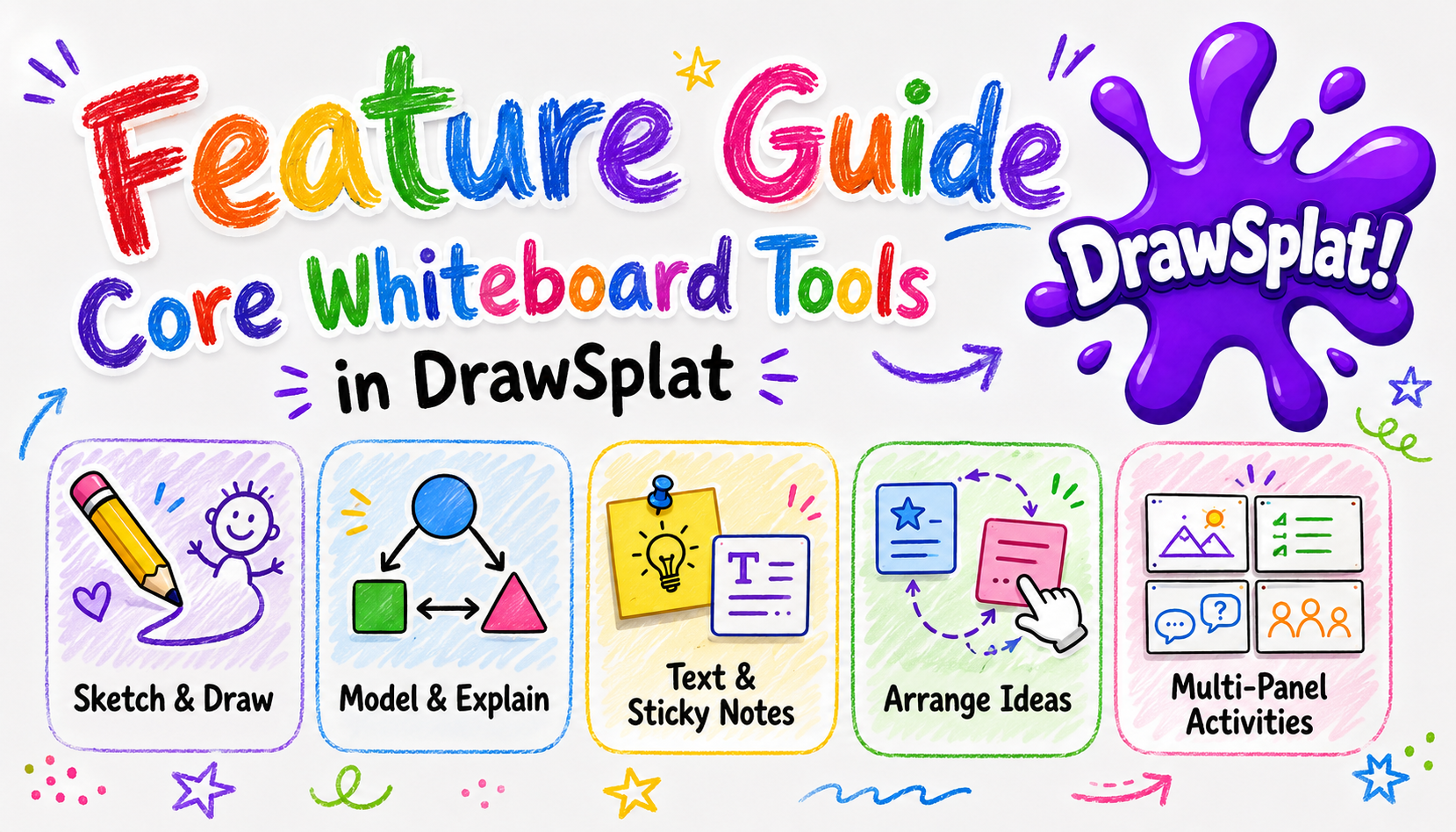
Feature Guide
Core Whiteboard Tools
Use DrawSplatTM as a flexible classroom board for sketching, modeling, annotating, arranging ideas, and building multi-panel activities.
When to use these tools
- Whole-class modeling while students watch or contribute.
- Small-group brainstorming and sorting activities.
- Quick visual explanations with drawings, arrows, text, and sticky notes.
- Multi-step lessons using panels as frames, stations, or pages.
Main controls
- Select: move, resize, rotate, group, duplicate, and arrange objects.
- Pen, line, and arrow: sketch, underline, connect, point, and annotate.
- Shapes: add rectangles, ellipses, diamonds, triangles, callouts, and speech bubbles.
- Text: place text boxes or double-click text-capable shapes to write directly inside them.
- Sticky notes: capture student ideas, exit-ticket responses, questions, or quick labels.
- Panels: create separate frames for lesson steps, groups, stations, or versions.
Fast classroom workflow
- Open the whiteboard and keep the interface in Simple mode for a clean tool set.
- Add a prompt with the Text tool or a sticky note.
- Use shapes to create response zones, sorting boxes, or labels.
- Use arrows and lines to show relationships or model thinking.
- Duplicate objects when you need repeated labels, answer boxes, or station cards.
- Add a new panel for the next step instead of erasing the current work.
Tips
- Use Shift + click or drag on blank canvas to select multiple objects.
- Group related objects before moving a template or activity prompt.
- Use direct shape text editing when a label belongs inside a shape.
- Keep Simple mode on for students; switch to Advanced when you need connectors, comments, audio notes, templates, or cloud workflows.