Feature Guide
Images, Stickers, and Coloring
Add visual prompts, classroom stickers, coloring pages, animal images, and student-created pictures to make the board more concrete and engaging.
What this covers
- Load Image: place an uploaded image, PDF page, or supported slide image onto the board.
- Image Gallery: choose built-in classroom images and coloring assets.
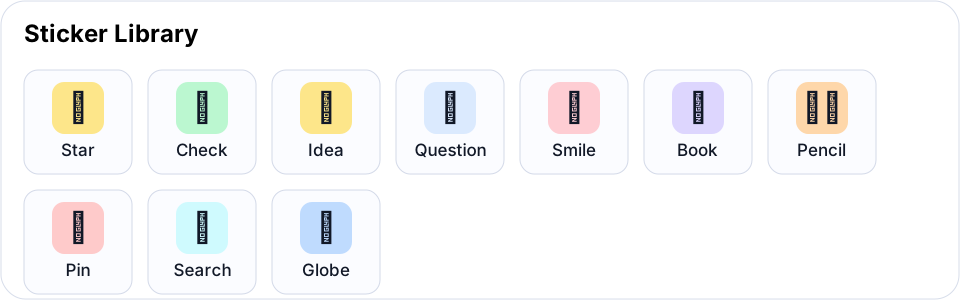
- Stickers: place quick visual labels, feedback markers, or icons.
- Crop and masks: shape images into circles, triangles, stars, hearts, and other classroom-friendly forms.
- Coloring Book: insert line-art pages for annotation, coloring, labeling, or download.
Classroom ideas
- Insert an image and ask students to label parts with arrows and sticky notes.
- Use stickers as quick status markers: checked, question, idea, pin, book, or search.
- Place an animal photo and build a picture graph, habitat map, or observation board.
- Insert a coloring page and ask students to color-code evidence, vocabulary, or categories.
- Crop a picture into a shape to create cleaner activity cards.
Suggested workflow
- Choose Insert, then load an image or open the image gallery.
- Resize and position the image on the board.
- Use the inspector to crop, mask, duplicate, or adjust opacity.
- Add labels, arrows, stickers, or student response spaces around it.
- Lock the image as a background when students should work on top of it without moving it.
Tips
- Use lower-resolution images when students are on shared devices or slow connections.
- Keep labels separate from the image if students need to move answers around.
- Use the built-in gallery when you want local assets that do not depend on external websites.